
How to Check iPhone Battery Health for All Older and Newer Models

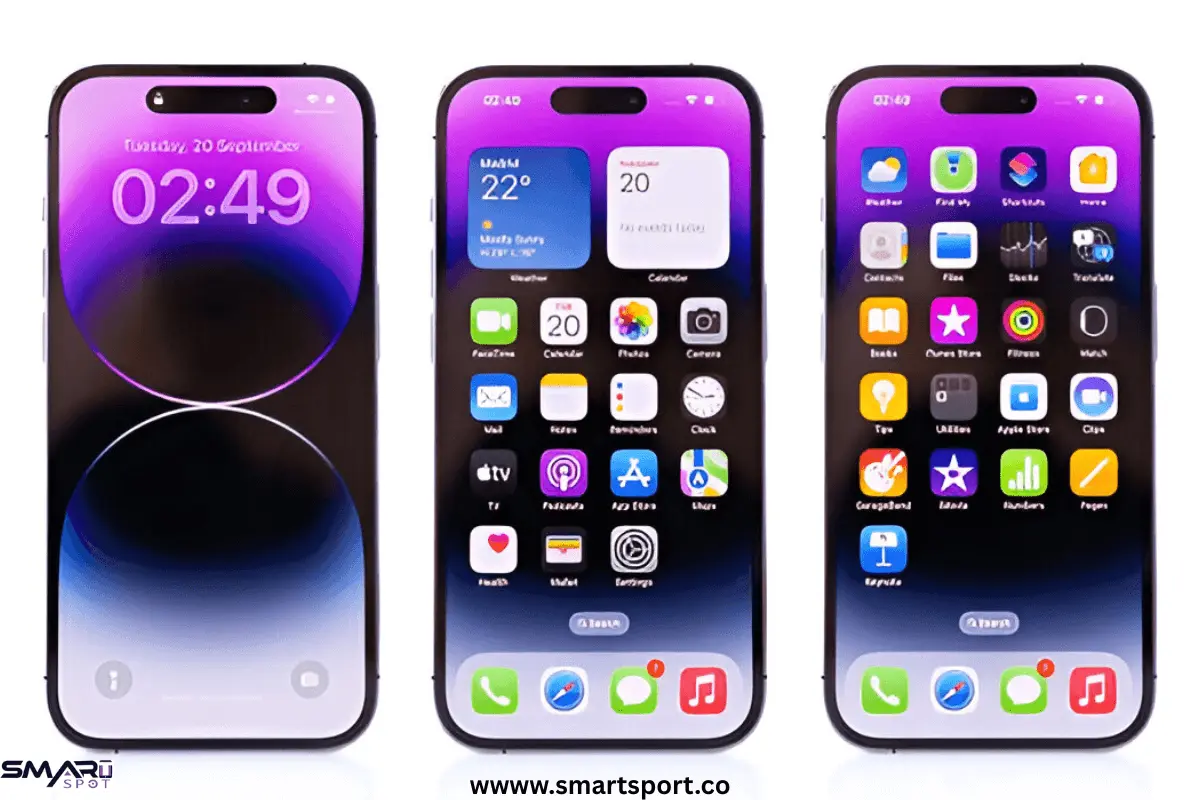
Your iPhone is one of the most important devices you use daily but its performance depends on the battery. Over time, all batteries lose strength. This can lead to shorter usage time and sudden performance issues. That’s why it is important to know how to check iPhone battery health. It helps you understand the current condition of your phone’s battery and know when it might need a replacement.
Whether you own an older model like the iPhone 5s or a newer one like the iPhone XS, checking battery health is quick and simple.
Understanding iPhone Battery Health
iPhones use lithium-ion batteries. These are light, fast to charge and very efficient. But like all rechargeable batteries, they lose strength over time.
Battery life shows how much charge your battery can still hold cFompared to when it was new. For example, if it shows 90% capacity, your battery now has only 90% of its original power.
Peak Performance Capability tells you if your iPhone can still run at full speed. When the battery weakens, iOS may slow performance to stop sudden shutdowns.
Apple also added Optimized Battery Charging. This feature learns your daily charging habits. It prevents overcharging and helps the battery last longer.
| Battery Health Percentage | Condition |
What It Means |
| 100% – 90% | Excellent | Battery is working almost like new. |
| 89% – 80% | Good | Some wear is visible but still reliable. |
| 79% – 70% | Fair | Battery life noticeably shorter; consider replacement soon. |
| Below 70% | Poor | iPhone may shut down unexpectedly; replacement recommended. |
Why Checking Battery Health Is Important
iPhone batteries wear out with time. As they age, they lose the ability to hold power. Weak battery health can cause:
- Frequent charging during the day.
- Sudden shutdowns occur when the battery cannot handle peak load.
- Overheating while charging or using the phone.
- Slower performance due to Apple’s power management.
Checking battery health helps you stay aware of these issues. You can then decide whether to replace the battery, change your charging habits or keep using the phone as it is.
How to Check iPhone Battery Health on Different Models
Apple’s battery health feature was introduced in iOS 11.3, meaning it is not available on very old devices like the iPhone 5s by default. However, there are alternative ways to check. Let’s go through each model step by step.
How to Check iPhone 5s Battery Health
The iPhone 5s has no built-in Battery Health option in newer models. But you can still check its condition in a few ways:
- Battery Usage in Settings
- Go to Settings > Battery. Here, you can see which apps use the most power. It won’t show the exact health percentage but it helps spot abnormal battery drain.
- Third-Party Apps
- Use tools like iMazing or Coconut Battery (for Mac). Connect your iPhone to a computer; these apps will show details such as maximum capacity, cycle count and charging status.
- Apple Store or Service Center
- For the most accurate check, visit an Apple Store or an authorized service provider. Technicians can run a complete diagnostic on your battery.
In short, while the iPhone 5s doesn’t show battery health in its settings, you can still track it with third-party tools or professional help.
|
Method |
How to Do It | Pros |
Cons |
| Third-Party Apps (like CoconutBattery for Mac, iMazing) | Connect iPhone 5s to Mac/PC and run the app. | Detailed battery health info. | Requires computer & software. |
| Apple Support/Authorized Service | Visit Apple Store for diagnosis. | Official and reliable results. | Time-consuming. |
How to Check Battery Health on iPhone 7
The iPhone is one of the earlier models to support Apple’s built-in battery health feature. To check it:
- Open Settings.
- Tap on Battery.
- Select Battery Health & Charging.
- Review the Maximum Capacity and Peak Performance Capability.
If you’re wondering how to check the original iPhone 7 and battery health verify the device’s authenticity. You can check the IMEI number on Apple’s official website to ensure it’s a genuine device. Once confirmed you can review the battery health directly from the settings. If the maximum capacity is below 80%, it may be time to replace the battery.
|
Check |
What to Look For |
| Battery Health | Over 80% = good condition |
| Peak Performance | Should say “Your battery is currently supporting normal peak performance.” |
| Battery Parts & Service History (Settings > General > About) | If it says Genuine Apple Part, the battery is original. |
How to Check Battery Health on iPhone X
With the release of the iPhone X Apple improved the battery health tracking system. Here’s how to check it:
- Open the Settings app.
- Tap Battery.
- Select Battery Health & Charging.
- Check the Maximum Capacity percentage.
- Review whether Optimized Battery Charging is enabled.
The iPhone X also supports peak performance monitoring, meaning you’ll be notified if your device is slowing down due to an aging battery. If your battery health shows less than 85%, you may notice shorter daily usage and more frequent charging needs.
How to Check iPhone XS Battery
The iPhone XS battery health feature works like the iPhone X. You can easily find it in Settings > Battery > Battery Health & Charging. The iPhone XS has a more efficient battery than older models but degrades over time.
If your iPhone XS battery shows a maximum capacity below 80%, you’ll notice significant performance and battery life drops. At this point, Apple recommends getting a replacement.
General Steps: Check Battery Health on Any iPhone
If you have an iPhone 6 or newer, you can check battery health directly in settings:
- Open Settings.
- Scroll down and tap Battery.
- Select Battery Health & Charging.
- Look at Maximum Capacity (%) – this shows how much charge your Battery can hold compared to when it was new.
- Check Peak Performance Capability – this tells you if your iPhone can still deliver normal performance.
- Make sure Optimized Battery Charging is turned on to slow battery aging.
This feature gives you a clear picture of your Battery’s health and whether it can still perform well in daily use.
Signs of Poor iPhone Battery Health
You don’t always need settings to know your iPhone battery is weak. Look for these signs:
- The phone shuts down randomly even when the battery shows plenty of charge.
- The battery drains too quickly and you must recharge it several times daily.
- Charging takes much longer than usual.
- The phone feels warm while charging or during light use.
- Battery Health shows Maximum Capacity below 80%.
| Signs |
Possible Reason |
| Phone drains quickly | Battery capacity degraded |
| Unexpected shutdowns | Peak performance not supported |
| Slow charging | Battery wear or charger issue |
| Overheating | Old or faulty battery |
If you notice two or more of these issues it’s likely time to replace your iPhone battery.
How to Check if Your iPhone Battery Is Original
Many iPhones are refurbished and some come with non-genuine batteries. Here’s how to check:
- iPhone 11 or newer:
- Go to Settings > Battery. If the battery is not original you’ll see an Important Battery Message.
- iPhone 7, iPhone X and iPhone XS:
- Check your IMEI number on Apple’s website.
- Look at the service history if it is available.
- Notice if the battery drains too fast. This may mean it’s not original.
A genuine Apple battery gives you better safety, steady performance and longer life for your phone.
|
Battery Replacement Status |
Message Shown in Settings |
| Original Apple Battery | “Genuine Apple Part” |
| Third-Party Battery | “Unknown Part” or “Unable to verify this iPhone has a genuine Apple battery.” |
When Should You Replace Your iPhone Battery?
Apple suggests replacing your iPhone battery when the Maximum Capacity falls below 80%. At this point, your phone will:
- Hold the charge for a shorter time
- Run slower or lag
- Shut down often
- Overheat during use
Replacing the battery can make your iPhone work almost like new.
You can complete this at an Apple Store or an authorized service provider. While cheaper, non-genuine parts can harm your phone and reduce its lifespan.
Simple Tips for iPhone Battery Health
Keep your iPhone battery strong with these habits:
- Avoid heat or cold. Both damage the battery.
- Turn on Optimized Charging. It stops overcharging.
- Do not let the battery reach 0%. Stay between 20% and 80%.
- Use Apple certified chargers. Fake ones can harm your phone.
- Keep iOS updated. Updates improve battery use.
These simple steps help your battery last longer.
Common Issues When Checking iPhone Battery Health
Some users may face the following problems:
Battery Health not showing This usually happens if your iPhone is on an outdated iOS version. Updating the software often solves it.
Inaccurate percentage readings Sometimes the battery shows incorrect values due to calibration issues. A complete charge cycle can help fix this.
Unexpected shutdowns Even if the battery health looks fine, your phone may shut down suddenly. This can point to a hardware issue that needs professional inspection.
Best Apps to Check iPhone Battery Health
Apple’s built in tool is helpful but third party apps can give more profound insights. Here are some popular choices:
- CoconutBattery – Works on Mac. It shows health, charge cycles and battery wear.
- iMazing – Available for Mac and Windows. It gives detailed battery diagnostics.
- Battery Life App – An iOS app that shows extra battery details on your iPhone.
These apps are handy, especially for older models like the iPhone 5s that do not have built in battery health tracking.
FAQs on iPhone Battery Health
- How can I check iPhone 5s battery health without an app?
You can view battery usage in Settings > Battery. To see the actual health percentage use a third party app or visit Apple Support.
- Is 85% battery health good for iPhone 7?
Yes. 85% is still usable but you may notice shorter battery life. Apple recommends replacing the battery below 80%.
- Can I check if my iPhone 7 battery is original at home?
Yes. Verify the IMEI on Apple’s website. You can also check health in Settings > Battery Health & Charging.
- How often should I check iPhone battery health?
Once every few months is enough. Check more often only if you notice performance problems.
- Does replacing the battery reset battery health to 100%?
Yes. Installing a new genuine Apple battery resets health to 100%.
- How can I improve iPhone XS battery health?
Turn on Optimized Battery Charging, avoid full discharges, and use Apple-certified chargers.
- Can third-party apps safely check iPhone battery health?
Yes. Apps like iMazing and CoconutBattery are widely used and safe for diagnostics.
- What happens if battery health drops below 80%?
Your iPhone may perform slower, have shorter battery life, or shut down unexpectedly. Apple recommends replacement at this stage.
- Does charging overnight harm iPhone battery health?
Not if Optimized Battery Charging is enabled. Without it, keeping the battery at 100% for long periods can degrade it over time.
- Where can I replace my iPhone battery in Dubai/UAE?
Visit Apple Stores in Dubai Mall or Mall of the Emirates, or go to any authorized Apple service provider in the UAE.
Final Thoughts
Checking your iPhone battery health helps you know how well your device performs and how long it will last. Older models like the iPhone 5s need third-party apps or diagnostics. Newer models such as the iPhone 7, iPhone X, and iPhone XS have built-in tools to track battery health.
Pay attention to the Maximum Capacity and turn on Optimized Battery Charging to make your battery last longer. When it’s time to replace it, use a genuine Apple battery. This restores performance and reliability, making your iPhone feel like new.
For more tips on iPhone care, battery maintenance and tech guides, visit Smart Spot. The website has easy tutorials, expert advice and reviews. Whether you need battery tips or guides for older and newer iPhones, SmartSpot can help you get the most from your device.